How renting a GPU works, from crypto payment to SSH
Five screens separate you from a root shell on an H100 or an RTX 4090, and the only payment step is a crypto transfer. Here they are, captured from our client area, with the rules the meter follows.
Renting a GPU on Petaflare takes five steps:
- Pick a GPU and a block of GPU-hours.
- Send the exact crypto amount shown; a 16-digit account number becomes your login.
- Once the payment is confirmed, the hours appear in your dashboard.
- Start an instance: choose 1 to 8 GPUs and an image, then add your public SSH key.
- When our team has prepared the machine, its SSH command appears and the meter starts. Stopping the instance stops the meter.
Five steps, five screens
Captured on 19 November 2026 from our client area running on a local test setup, with a real order for a 12-hour H100 block. The deposit address, QR code and account number are blurred.
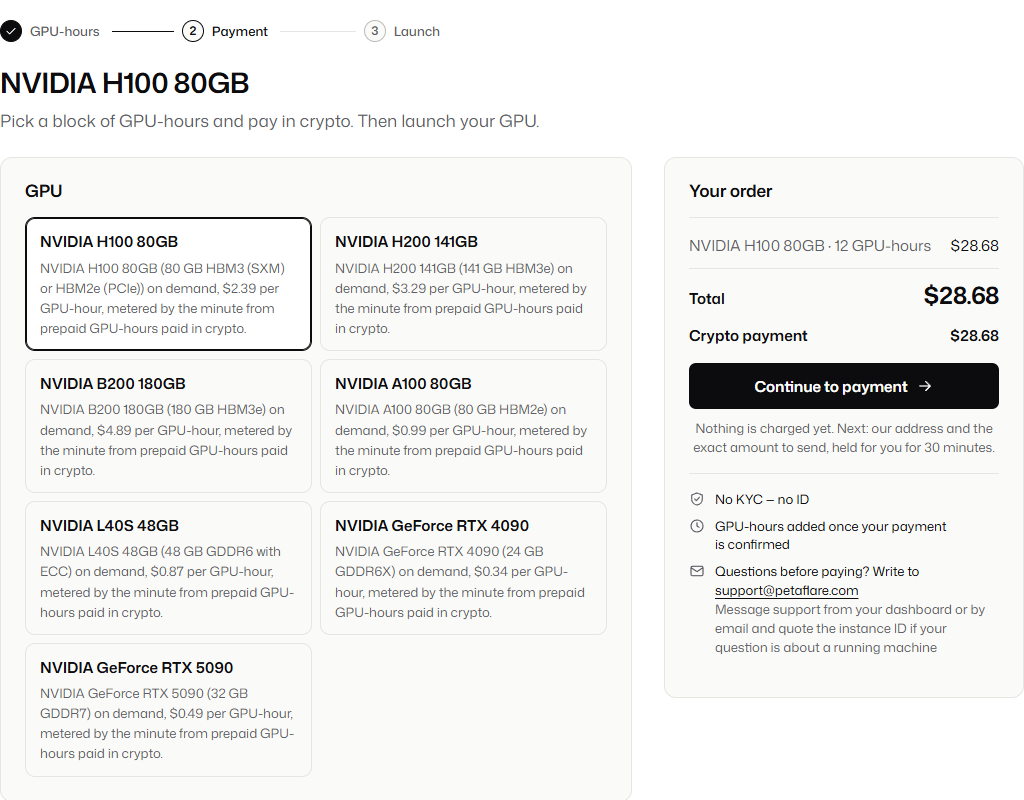
Choose the GPU and the block
The checkout lists the seven cards and the four blocks of each, with the price per GPU-hour. You can switch card or block until you pay.
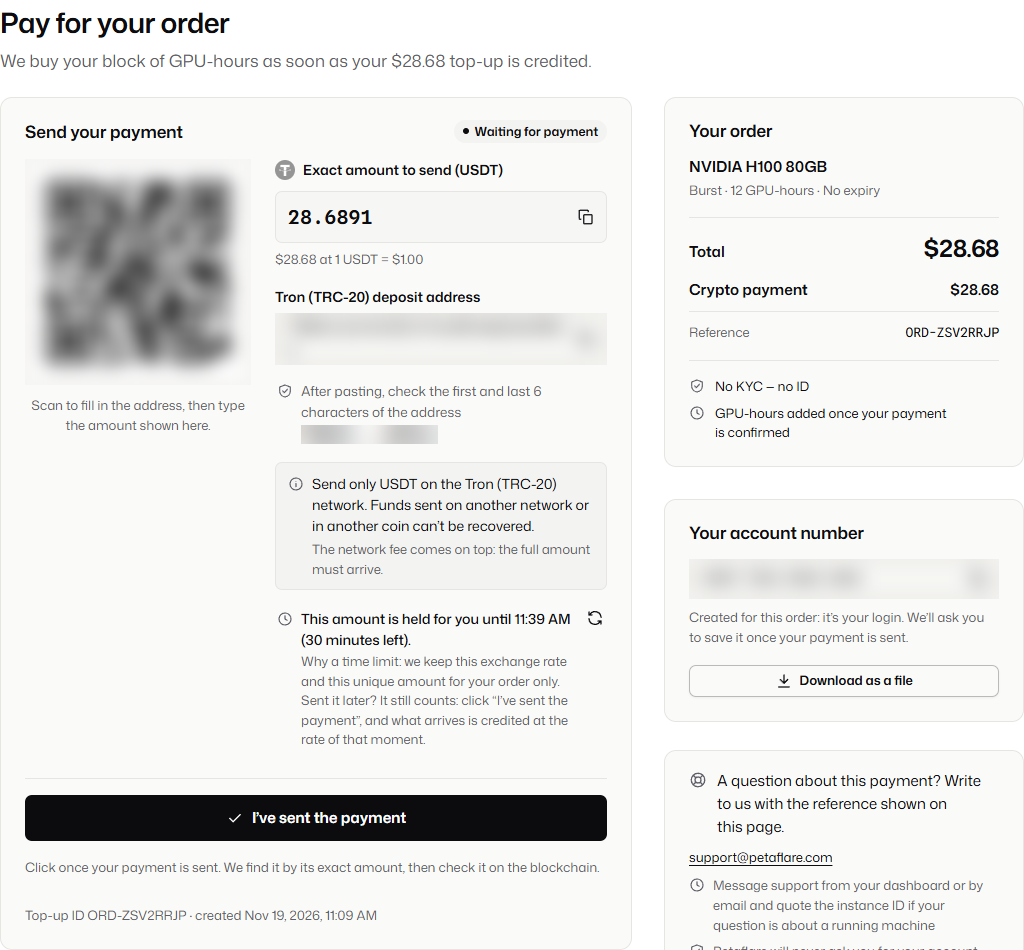
Send the payment
Choose a coin and its network. You then see the sum to send, to four decimals, with a deposit address and QR code that stay valid for 30 minutes.
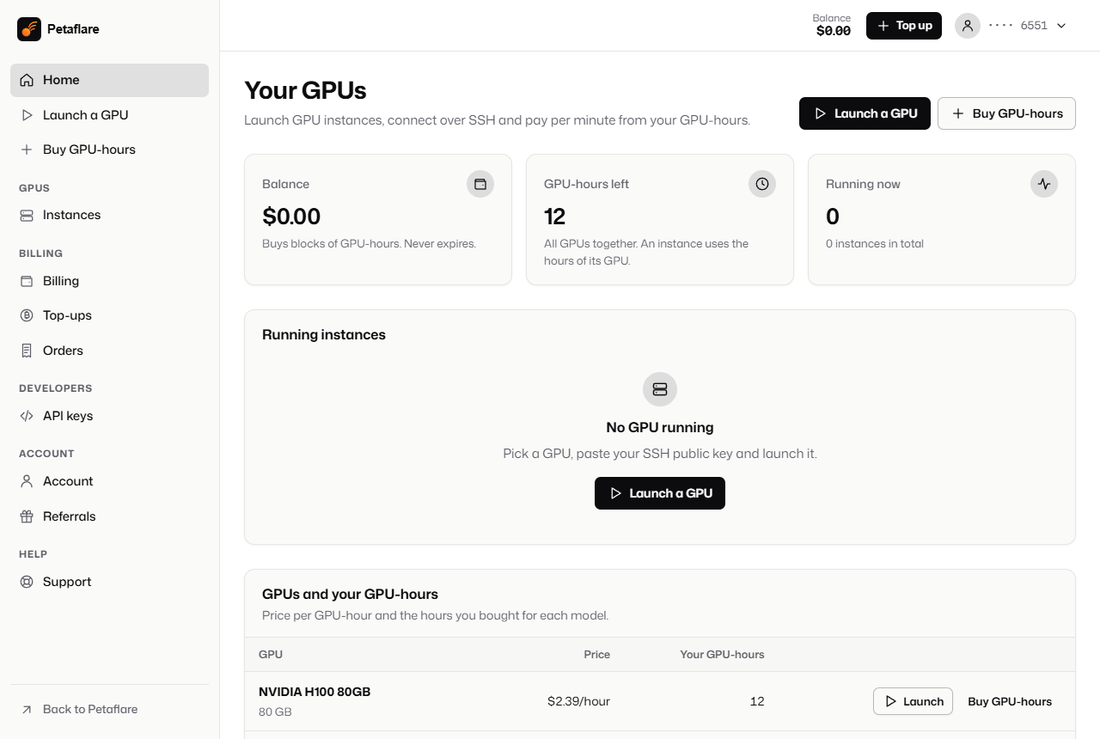
Hours land in your dashboard
As soon as the blockchain confirms the transfer, that card's GPU-hours show up. They do not expire.
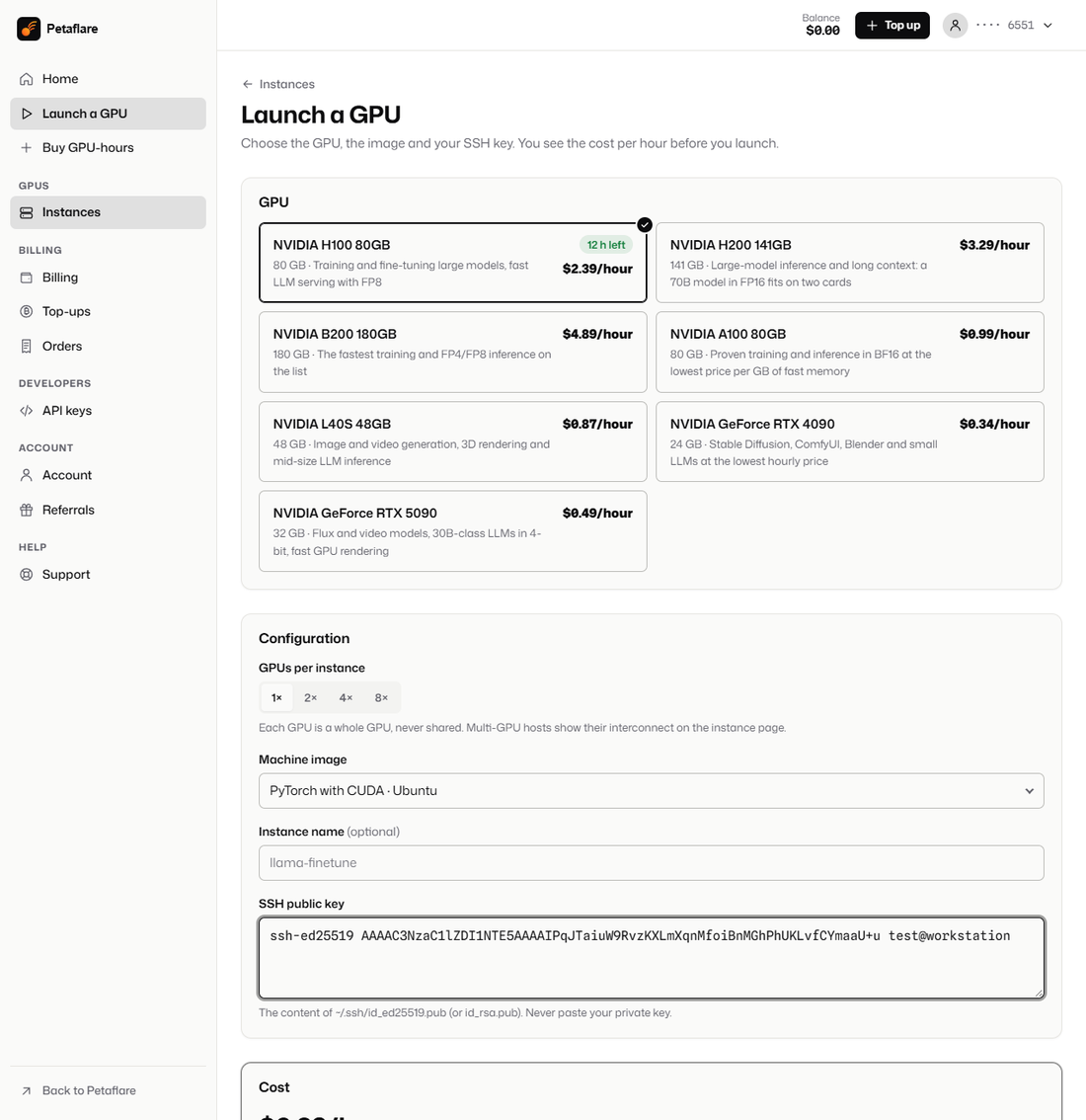
Launch an instance
Pick the card and how many of them (1 to 8), select the PyTorch, CUDA or Docker image, and add your public SSH key. The hourly cost shows before you launch.
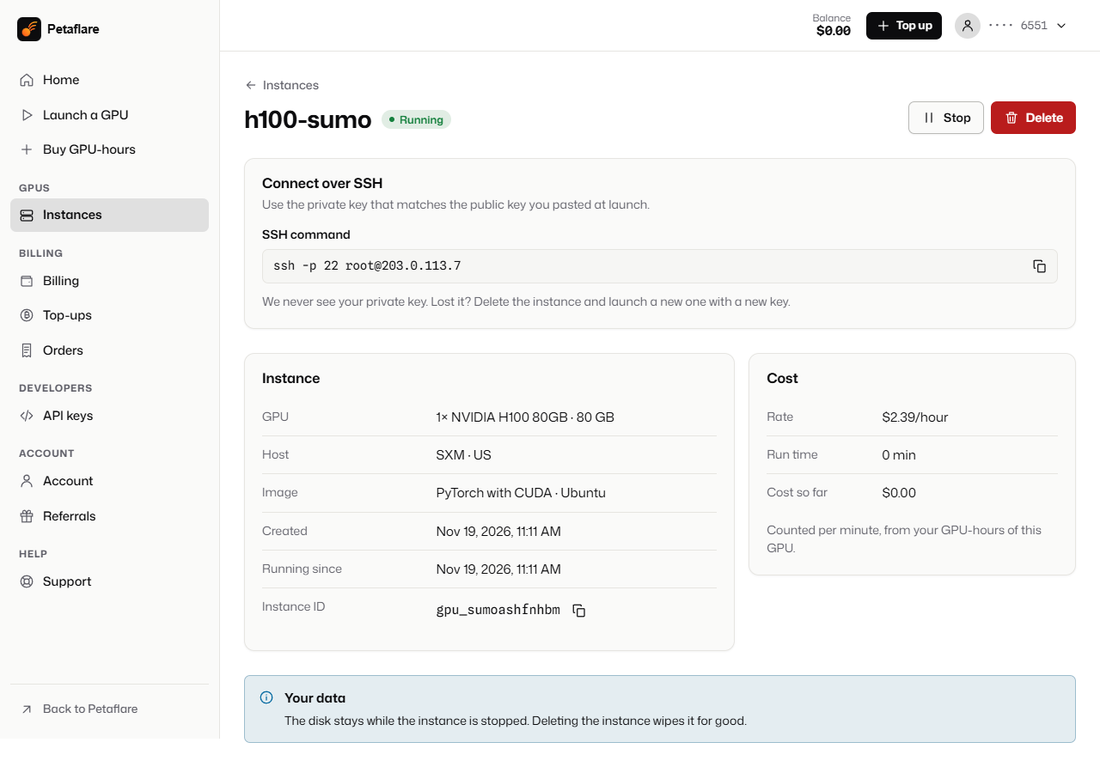
Connect over SSH
When the machine is ready, the page shows the SSH command, the form factor and the host's country. The meter starts at that moment.


When the meter runs, and when it stops
The meter counts GPU-minutes, not money: each running instance takes one GPU-minute per card from the hours you bought for that card.
- It starts when the SSH details appear, not when you click Launch. The time our team spends preparing the machine is free.
- It multiplies by the number of cards: an hour on 8 GPUs uses 8 GPU-hours.
- It stops when you stop the instance. The disk stays, so you can start again from where you were.
- When a card's hours run out, its instances stop at that minute and keep their disks. A new block lets you start them again.
- Deleting an instance erases its disk permanently.
The same rules decide the prices on the price list and calculator.
How your crypto payment is checked
Every order is given its own amount, such as 28.6891 USDT for a $28.68 block, which is how we match a transfer to the right order without checking who you are. Use the network shown on the page: coins sent over another network or in another coin are not credited automatically, and getting them back is not always possible. Add the network fee yourself, since the order needs the whole amount to land.
After sending, press I've sent the payment. We locate the transfer by its amount, verify it on-chain, and add the hours once it is confirmed. Coins that land after the 30-minute quote still count, valued at the rate when they land. Coins, networks and confirmation times are listed on the crypto payment page; sending from an exchange, Tron fees and look-alike addresses are covered in how to pay with USDT or Bitcoin.
What our team does behind the screens
Petaflare is not an automated marketplace. When you launch an instance, a person on our team creates the machine at our GPU provider with your SSH key and the image you picked, then publishes its address to your dashboard. Stop, start and delete requests are carried out the same way, and the dashboard shows each request until it is done.
Because a person does it, we do not promise a delivery time we have not measured. What we do promise is in the meter: you pay nothing for the wait. If a machine never starts properly or its GPU is faulty, the hours it used are returned under our refund policy.
Your account: a number, no identity
A random 16-digit account number is generated with your first order and acts as your login, with no username and no identity check. You can add an email address or a password later; an email serves only for receipts and for recovering a lost number.
Keep the number somewhere safe; without it or an email we cannot give access back. Nobody at Petaflare will ever ask you for it, for an SSH private key or for a wallet seed phrase. To set up your first project after connecting, see running ComfyUI on a rented GPU. To choose a card before you pay, go back to rent a GPU.
Questions about the process
How soon is the GPU ready?
The payment counts once the network confirms it (about a minute for USDT on Tron). The machine is then prepared by a person on our team; we do not publish a delivery time yet, and the meter only starts when the machine is ready.
Must I create an account first?
No. The checkout creates your account number when you continue to payment. No form, no email required.
Can I change the GPU after paying?
Hours belong to the card you bought them for. To use another card, buy a block for it; the hours of the first card stay on your account.
What do I need on my side?
An SSH key pair and an SSH client. Paste the public key (the .pub file) at launch, and keep the private key on your computer.